Thursday, April 25, 2013
Post 12
Last night we had our multicultural night with eighth grade students from Fond Du Lac middle schools. I felt a bit badly for them since they had to get to know us and it was the end of the day and they seemed a bit worn out. Aida had a play a few games and I thought all of them could be applied in a classroom setting. I have played circle name games before but I thought adding the action verb to your name, while acting it out was a great touch. The Shape War went OK with the eighth grade students but I think it would have gone better with a bigger group. I liked the Elephant story and it reminded me of a picture book in my library with a similar slant. Looking at the rest of the agenda for the students it seems like a great opportunity to visit a university setting and learn something along the way.

Field Trip Take Two - Virtual
The virtual tour I explored was the Smithsonian National Museum of Natural History, Panoramic Virtual Tour. It can be found at: http://www.mnh.si.edu/panoramas/. As the site states, this virtual tour allows students using a desktop computer (Windows, Mac, Linux) or a mobile device (iPhone, iPad, Android) to take a virtual, self-guided, room-by-room walking tour of the whole museum. You can even browse a list of past exhibits, which is included on the ground floor map (see upper right map buttons). The visitor can navigate from room to room by clicking map locations or by following the blue arrows on the floor that connect the rooms. The desktop version is the best and includes numerous camera icons to indicate hot-spots where the visitor can get a close-up view of a particular object or exhibit panel.
From looking at other museum virtual tours I thought the best part about this virtual tour was the availability across different devices and the ability for the user to click on the camera icons for close up views. The quality of all the images and the panorama was exemplary. I also really liked the user-friendly navigation within the panoramic views of the museum. It was very easy to tell where you were within the museum as well as access the past exhibits. As a teacher I think I would use a scavenger hunt or some other assignment to give the exploration of this site some purpose and I wish there more of the captions to exhibits could be seen, but overall this was one of the best quality museum virtual tours I saw and I would recommend it to teachers.
Wednesday, April 17, 2013
Post 11
While I do love Google and Google Apps there can be things that are a bummer about the Google world. The slide show Google for Teachers mentioned using the Google Search Wonder Wheel. I loved the Wonder Wheel and I know a lot of school librarians would work it into their research lessons. But sadly Google got rid of the Wonder Wheel.
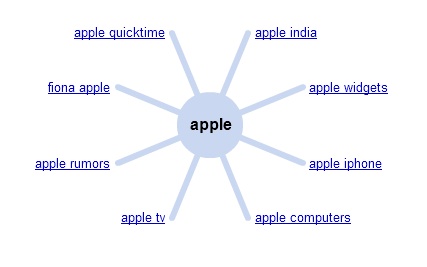 School librarians used to be able to teach students how to get to the advanced search setting while Google Searching with one click, not it takes two. Another bummer.
Our district uses Gmail and Google Apps for Education. This morning, seemingly random users could not access their Gmail. Of course this dispurpts our students' and staff's days. Last time this happened, I was able to find a useful site on Twitter: http://www.google.com/appsstatus. This site lets me know if Google is having issues with their apps and are working on it.
Our district uses Gmail and Google Apps for Education. This morning, seemingly random users could not access their Gmail. Of course this dispurpts our students' and staff's days. Last time this happened, I was able to find a useful site on Twitter: http://www.google.com/appsstatus. This site lets me know if Google is having issues with their apps and are working on it.
Thursday, April 11, 2013
Post 10
Since I love Google Apps for Education I got the chance to use Google Drawing with my TCH 602 lesson.
I think this would be a great tool to utilize for many social studies lessons. In my lesson we used Google Drawing to create time lines. The students loved being able to create their own timeline. With the Research tool we were able to easily insert applicable pictures. The app could also be used to create mind mapping tools.
Instructions to use Google Drawing can be found here: http://support.google.com/drive/bin/answer.py?hl=en&answer=179740
Great video tutorial: http://vimeo.com/50797313
With Google drawings you can easily create, share, and edit drawings online. Here are a few specific things you can do:
- Edit drawings online in real time with anyone you choose, and invite others to view your edits in real time.
- Chat with others who are editing your drawing, from within the drawings editor.
- Publish drawings online to the world as images, or download them in standard formats.
- Insert text, shapes, arrows, scribbles, and images from your hard drive or from the Web.
- Lay out drawings precisely with alignment guides, snap to grid, and auto distribution.
- Insert drawings into other Google documents, spreadsheets, or presentations using the web clipboard, then tweak them online.
Instructions to use Google Drawing can be found here: http://support.google.com/drive/bin/answer.py?hl=en&answer=179740
Great video tutorial: http://vimeo.com/50797313
Wednesday, April 3, 2013
Post 9
My lesson with Summer focused on Civics which I think can be very important for students to understand. It comes down to being aware of the world around you and how it works. Children as well as adults need to understand their rights and responsibilities as citizens. Many adults seem a bit clueless when it comes to civic topics. Students should be aware of how the government works. When I think of civics I think of role and purpose government but civics can also cover social issues. This could lead to some amazing discussions especially in the upper elementary and middle school grades. If a teacher decides to tackle social issues they need to make sure to set their personal opinion aside when preparing lessons and teaching. Our middle school science teacher does a unit on global warming but makes sure to covert both sides of the issue and lets students write persuasive essays about the causes of global warming. Even though this is a science class, the social issue of caring for our environment can be connected to civics.
Subscribe to:
Comments (Atom)